After launch
What happens the second you press Create.
Pressing Create (or Deploy) sends the mint. The terminal opens on the new mint immediately and fills in as the mint and first buys land.
What you see#
- The terminal on your token, Trade Panel ready. Header: market cap, price, liquidity, supply, Fees Paid.
- Tasks rail — every autostart task with its status. Click a row to expand the full card.
- Trades feed — your fills tagged YOU; outside trades show the trader's address.
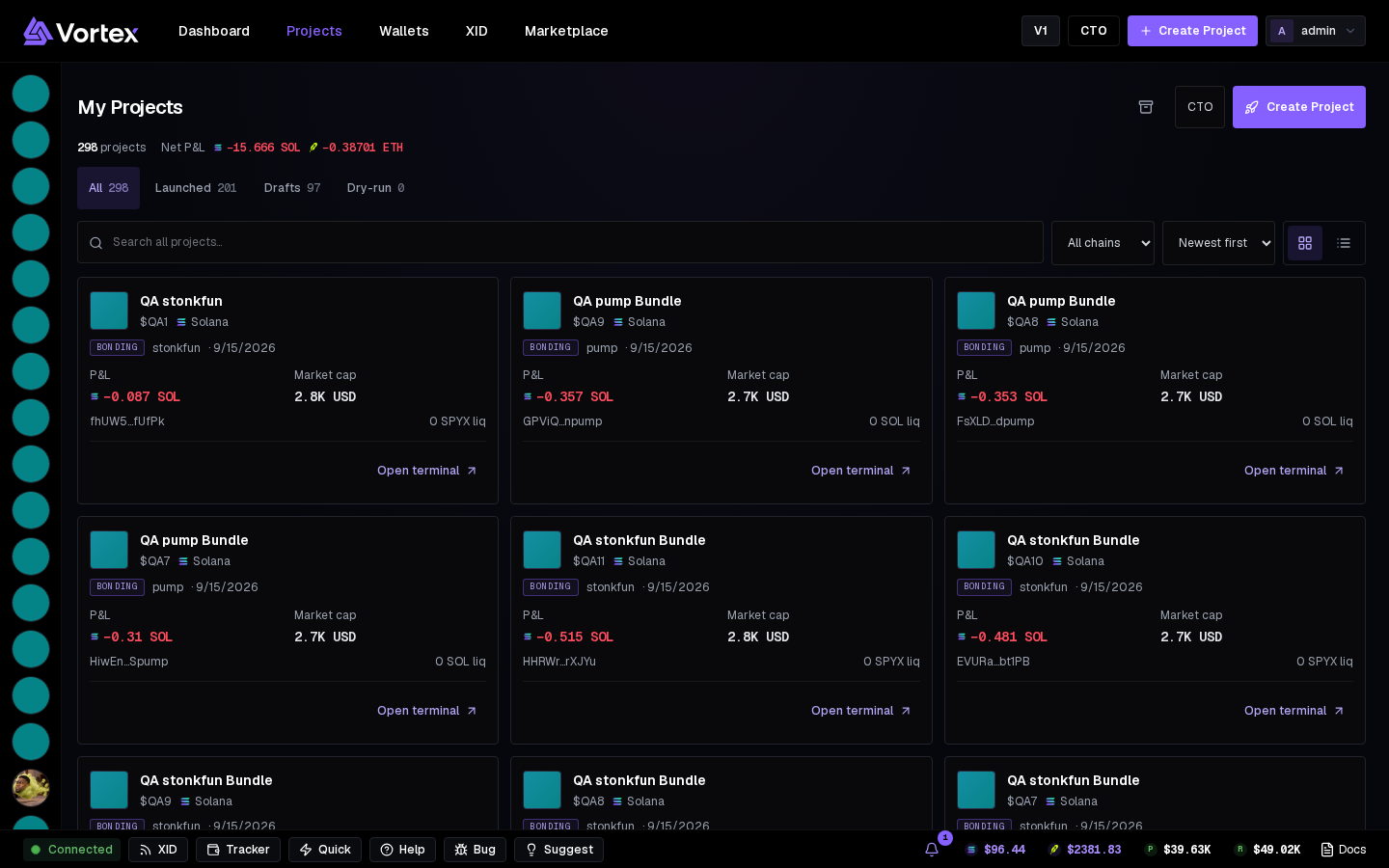
- Projects page — the new card shows launchpad and date, stage (BONDING until graduation), live market cap, P&L and Open terminal.
Read the launch result#
The result distinguishes Minted on-chain, Mint failed and simulation outcomes. Creation simulation passed covers the creation check; Simulation incomplete or Simulation result unavailable does not mean success. Read any Task execution was not tested or creator-buy message.
For a bundle, inspect whether it landed and which buyers were packed into each transaction. In a simulation, bundled wallet buys may be untested because the mint does not exist yet. Creator-fee or OTC Desks errors can be reported after the token itself launched; read those separately before retrying anything.
If something didn't land#
- Clean Simulate but reverted launch → the curve or balances moved in between. The task's Results names the failed leg.
- A task that never started says why on its card — in Results, or in Simulate on tasks that have it.
- With Launches above 1, the batch stops at the failed launch; earlier mints stay up.
Next#
- Add tasks with New task in the terminal's Tasks rail: Volume, Holder Boost, a sell Ladder, Anti-Sniper. These trade for real from the start.
- Share PnL in the header makes a card of the run — see P&L share cards.
- Done? Collect funds back to one wallet, or Close out on the Projects page to sell, close accounts and sweep in one go — see Close out.