How tasks run
Creating, starting, pausing and editing tasks — the form, the card and its sections.
Every automation is a task: a snipe, a volume loop, a sell ladder. They all share the same lifecycle and the same card on the Tasks page. Learn the card once and every task reads the same.
Creating a task#
- New task on the Tasks page — Choose target token: one of your tokens, or paste a mint and press Continue.
- New task in the terminal's Tasks rail — same form, pointed at that token.
- The wizard's Tasks step creates launch tasks that start with the launch.
The form, top to bottom:
- Presets — Load preset… or Save as preset.
- Task type — use Find a task or the category buttons, then choose a task tile. Only types supported on the token's chain appear. Token Sender distributes existing tokens.
- Supply plan (where supported) — pick a plan and Mount it.
- Task name (optional) and Start immediately.
- Wallets — click selects, shift-click selects a range; picked wallets stack in buy order, drag ⠿ to reorder.
- Task settings — options are grouped by setup, wallets and funding, amounts and limits, and timing. Additional controls such as slippage, timeouts and tips appear under Advanced where supported.
Create task saves it (and starts it with Start immediately).
Volume, Bundle, Holder Boost, Hand Switcher, Fake Volume, Anti-Sniper, Pro Trader Boost and the order tasks have no Simulate switch — they spend funds as soon as they start. See Simulate & dry run.
The card#
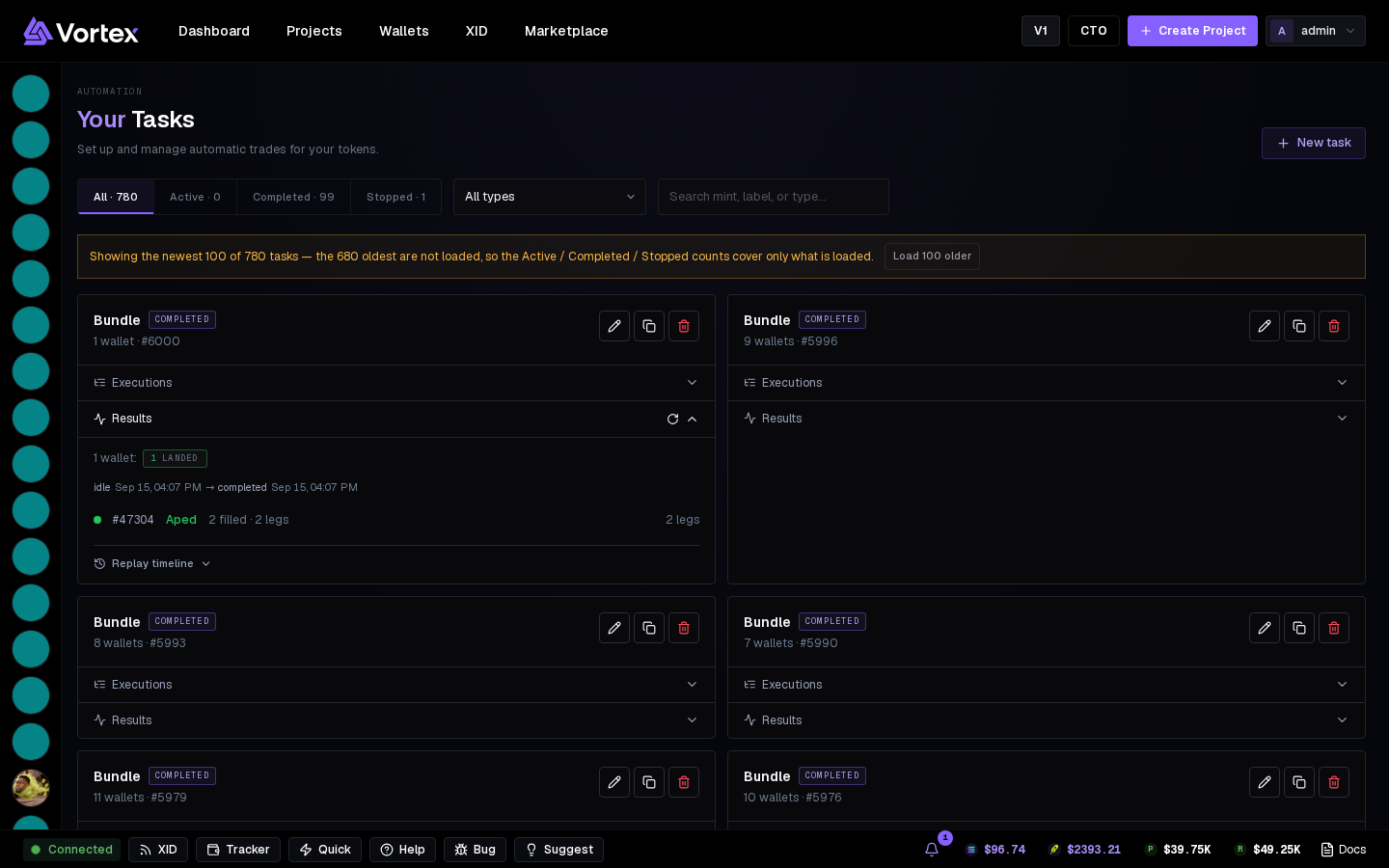
Header: task type, status (IDLE, RUNNING, COMPLETED, STOPPED, FAILED), then token, wallet count and task number.
Buttons (hover for the name):
- Start — begins a run; on a finished task it means Run again.
- Pause / Resume — resume skips wallets that already landed, so nothing fires twice.
- Stop — ends the run; landed stays landed.
- Edit — applies to a running loop without stopping it.
- Duplicate — a new idle task with the same options.
- Delete — asks once; history stays in your executions.
Sections#
Each opens on click:
- Deposit — on funding tasks that wait for a deposit: where to pay and who receives.
- Executions — one row per action: wallet, side, amount, status, transaction. Simulated rows say simulated.
- Orders — on Limit order, Ladder, Mirror, DCA and Trailing stop: every order with its state, and the live market cap.
- Results — the last run: counts (Landed, Failed, Simulated, Skipped, No action), start and end, and per wallet what it did or why it did nothing. Replay timeline steps through it; ↻ rebuilds it from landed fills.
- Simulate (no funds move) — what the task would do now from its options and live balances, and why it would be skipped. ↻ recomputes. Not on tasks that always trade for real.
Open a task directly#
Task results from Operations, Notifications and workspace search open the task's own page. Use it to follow the execution history without finding the task again in a long list.
Filters and history#
All / Active / Completed / Stopped with counts, a type filter and Search mint, label, or type…. The page loads the newest 100 tasks; Load 100 older fetches more — until then the counts cover only what's loaded.
A task remembers every landed action: an interrupted run picks up where it stopped. That's also why Pause and Resume are safe.
Task buys pay the platform fee on the spend, sells on what lands — same as a manual trade. See Fees.
See also#
- Simulate & dry run
- Buy — the simplest task to learn the card