Find your way around
Navigation, workspace search, pinned items and display density.
Use the top bar for Dashboard, Projects, Wallets, XID and Marketplace. Create Project opens the launch wizard. The account menu contains Portfolio, Swap, Tasks, Operations, Notifications, Support and account settings. On a phone, open the menu to reach these pages and tools.
Search your workspace#
Press the Search button in the header, or Ctrl K / ⌘ K outside the docs. Search by project name, wallet label or address, task, or page name. Paste a token address to open its terminal.
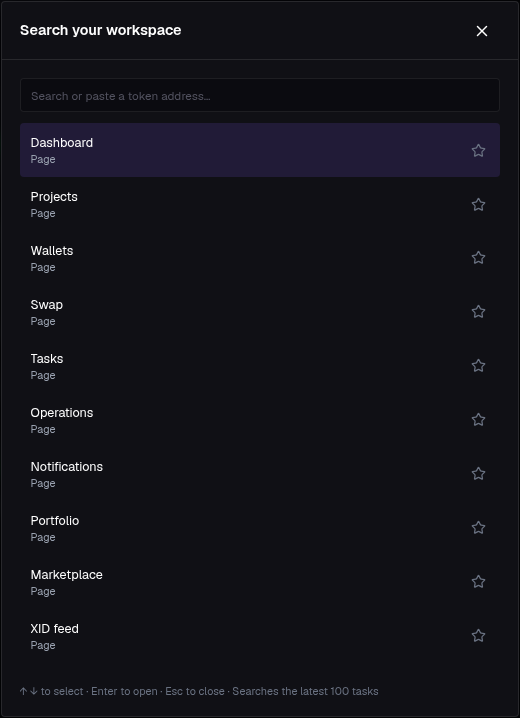
- Use ↑ / ↓ to select, Enter to open and Escape to close.
- Press the star beside a result to pin it. Pinned and recent items appear first.
- Task search covers the latest 100 tasks. Use the Tasks page for older runs.
- On documentation pages, use Search docs or
/to search the guides.
Choose your workspace#
Settings → Your workspace → Display density offers Compact and Comfortable. Workspace preferences, trading presets and deployment defaults save to your account. See Settings for save status, named configurations and changes from another device.
New accounts see starting steps on the Dashboard. You can launch a token, trade an existing token, or manage wallets; each path links to the relevant tools.
Follow work after leaving a page#
- Operations keeps conversions and project closeouts, including progress and receipts.
- Notifications links updates to their operation, task or order.
- The footer shows the connection state. During a disconnect, visible figures may be the last received values.