Settings
Account-synced preferences, display density, named configurations and trading defaults.
Settings holds your profile, trading presets, Quick deploy defaults and supply plans. Trading and deployment preferences now save to your account and follow you across devices.
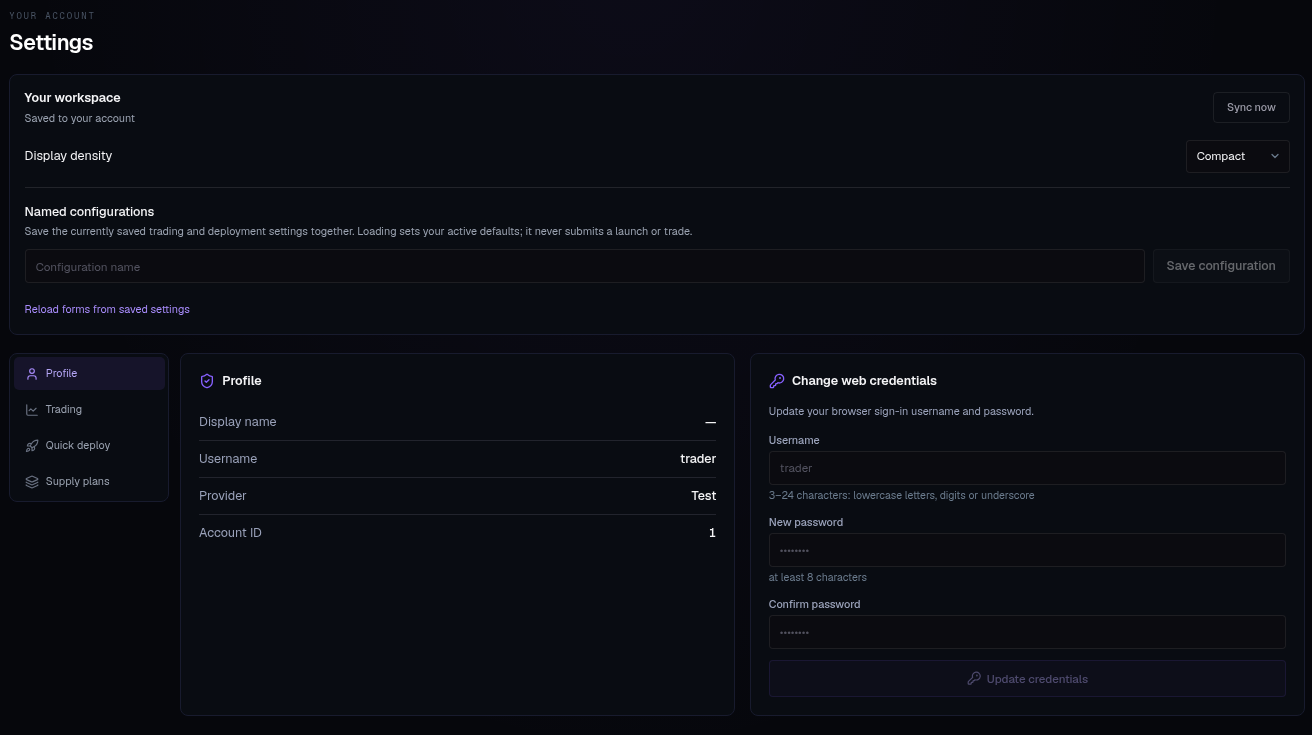
Your workspace#
- Display density — choose Compact or Comfortable.
- Save status — wait for Saved to your account. If synchronization needs attention, changes remain on this device; use Sync now to retry.
- Changes from another device — choose Use account version or Keep this version for each conflict.
- Named configurations — save your currently saved trading and deployment settings together. Give the configuration a name, then Save configuration. Load sets it as your active defaults; it does not launch or trade. You can keep up to 20 configurations.
- Reload forms from saved settings — refresh the forms after loading or resolving settings.
If this browser contains older local presets, Import this browser’s old settings lets you bring them into the current account. Import only settings that belong to you.
Profile#
- Display name, Username, Provider, Account ID.
- Change web credentials — username (3–24 chars) and password (8+) for Sign in with Vortex, once web login is enabled (ask via Support). Changing the password signs out every other session.
Trading#
- Trading presets — Preset 1 · 2 · 3, three independent sets. The active preset is what the Trade panel trades with, and it shows in the panel's footer. Each carries Buy amounts (per chain) and Sell sizes (%); Reset this slot to defaults restores one.
- Default slippage (bps).
- Randomize — small random band on chip sizes so fills differ.
- Confirmations — Confirm dev trades and Confirm Sell all (off by default).
Sell through another wallet#
*Fresh wallet → sell → return proceeds.*
- Off — sells go out from the wallet that holds the tokens.
- All sells — try a temporary wallet for every sale.
- Custom — pick case by case. Manual sells: Simple sell, Unique wallet sell (quick sells on a wallet row), Percentage sell (from the Trade panel), Sell all, Sell all except dev, Sell dev, Trade panel (fixed-amount sells). Task types: Volume, Anti-Sniper, Limit order, Ladder, Mirror, DCA, Trailing stop.
Press Save sell setting.
How it works:
- Solana — the first transaction sends 0.01 SOL and the tokens to a temporary wallet; the second sells and returns everything. A failed sale retries from the same temporary wallet. The extra transactions pay network fees.
- Robinhood — each temporary sale uses a new selling contract and may need a token approval first.
If the optional setup needs more funds than the source has, or its fee check, configuration or route is unavailable, the app tries a normal sale from the source wallet. Your saved setting stays on. The normal sale still needs enough funds for its own network fees and must meet your slippage limit.
Once a transaction has been submitted, its result is tracked before any retry. Tokens already moved to a temporary wallet stay on that wallet's recovery path.
Quick deploy#
What Quick deploy fires with and the wizard starts from:
- Launchpad · quote · mode — venue, quote coin, creator fees (recipient, Tax up to 10 %, Buyback).
- Default dev wallet, Dev buy, and the launch tasks that auto-start at the mint.
Supply plans#
Named % of supply presets for the supply calculator: slots with a percent each, Even split, and per slot which wallet role may take it (or a pinned wallet). A plan is percentages only — it mounts on any launch. See Tasks step.
Give slot 1 the Dev role and the rest Trading (no role). Mounted on a Snipe, the dev slot becomes the launch's Dev buy and the Snipe gets only no-role wallets — so the dev never takes one of the 31 launch-buyer places on Robinhood.