Operations
Follow saved conversions and closeouts, inspect receipts and stop queued work.
Open Operations from the account menu or workspace search. Conversions and project closeouts are saved to your account: you can close the dialog or tab and return from another device.
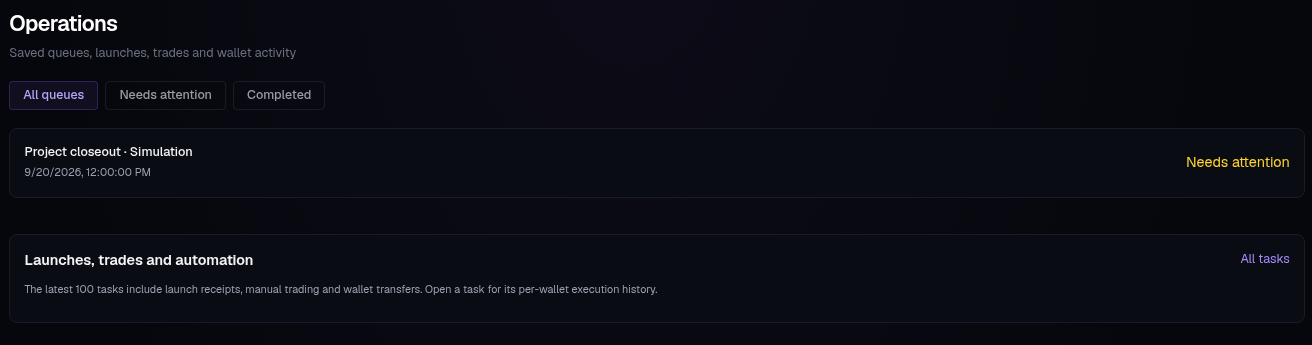
Find a queue#
Choose All queues, Needs attention or Completed. Older queues loads earlier work; Newest returns to the latest page. Simulations carry a Simulation label.
Open a row for its progress, per-item results and transaction links. Closeouts also link the sweep task when one was created. Keep the Operation reference if you need support.
Read the status#
| Status | Meaning |
|---|---|
| Queued | Waiting to start |
| In progress | Work has started |
| Awaiting confirmation | A submitted result is still being checked |
| Completed | The item or queue finished |
| Needs attention | Review the detail and any receipt before taking another action |
| Stopped | Remaining work was stopped |
Check status reloads the saved result. A lost connection does not mean a transaction failed.
Stop or continue#
Stop remaining items prevents queued items from starting. Work already started may still finish.
Continue remaining items is offered when a queue needs attention and still has queued items. It skips items needing attention and starts only the remaining queued items. It does not retry the affected transaction. Review its receipts before creating another operation.
A queue accepts up to 100 items. An account can have up to five active queues.
Launches, trades and automation#
The lower section links the latest 100 tasks, including launch, trade and wallet activity. Open a task for per-wallet execution history, or All tasks to find older work.